Quick start
This page takes you from an empty ASP.NET Core app to a signed-in admin panel.
1. Program.cs
using Microsoft.EntityFrameworkCore;

var builder = WebApplication.CreateBuilder(args);

// 1. Register: options from appsettings "SuperAdmin" + your EF Core provider.
builder.Services.AddSuperAdmin(
    builder.Configuration.GetSection("SuperAdmin"),
    db => db.UseSqlServer(builder.Configuration.GetConnectionString("SuperAdmin")));

builder.Services.AddControllersWithViews();   // your own app, as usual

var app = builder.Build();

app.UseStaticFiles();
app.UseRouting();

// 2. Order matters: authentication -> SuperAdmin guard -> authorization.
app.UseAuthentication();
app.UseSuperAdmin();
app.UseAuthorization();

// 3. Map the admin panel and your endpoints.
app.MapSuperAdmin();
app.MapControllers();

// 4. Create tables (or apply migrations) and seed the admin user, role, permissions and menu.
await app.InitializeSuperAdminAsync();

app.Run();
UseSuperAdmin() must run after UseAuthentication() and before UseAuthorization(). The guard needs the signed-in user, and the attributes such as [HasPermission] need UseAuthorization().
2. appsettings.json
{
  "ConnectionStrings": {
    "SuperAdmin": "Server=.;Database=MyApp;Trusted_Connection=True;TrustServerCertificate=True"
  },
  "SuperAdmin": {
    "RoutePrefix": "admin",
    "Title": "My Admin",
    "Auth": { "CookieSecurePolicy": "Always" },
    "Seed": { "AdminUserName": "admin" }
  }
}
The plugin tables can live in the same database as your app tables. They all start with sa_. Every key is listed in the Configuration reference.
3. First login
-
Set the first admin password with user-secrets or an environment variable. Never put it in
appsettings.json.dotnet user-secrets set "SuperAdmin:Seed:AdminPassword" "a-long-password"Run the app. On the first start it creates the user
adminwith that password.- Without a password, in
Developmentonly, a random password is printed to the console (never to the log). - In other environments no admin user is created. Create one with
dotnet <your app>.dll superadmin seed-admin. See Command line.
- Without a password, in
-
Open
/admin. You are redirected to/admin/auth/login.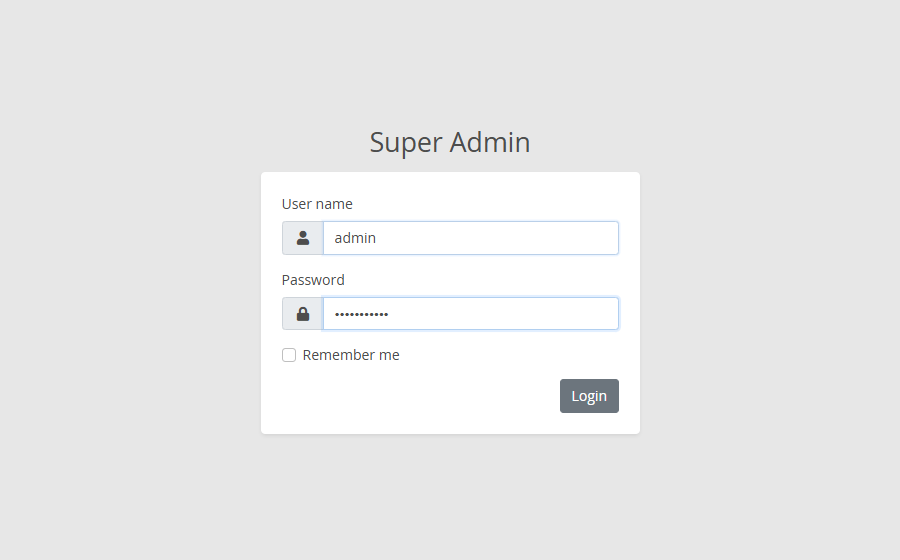
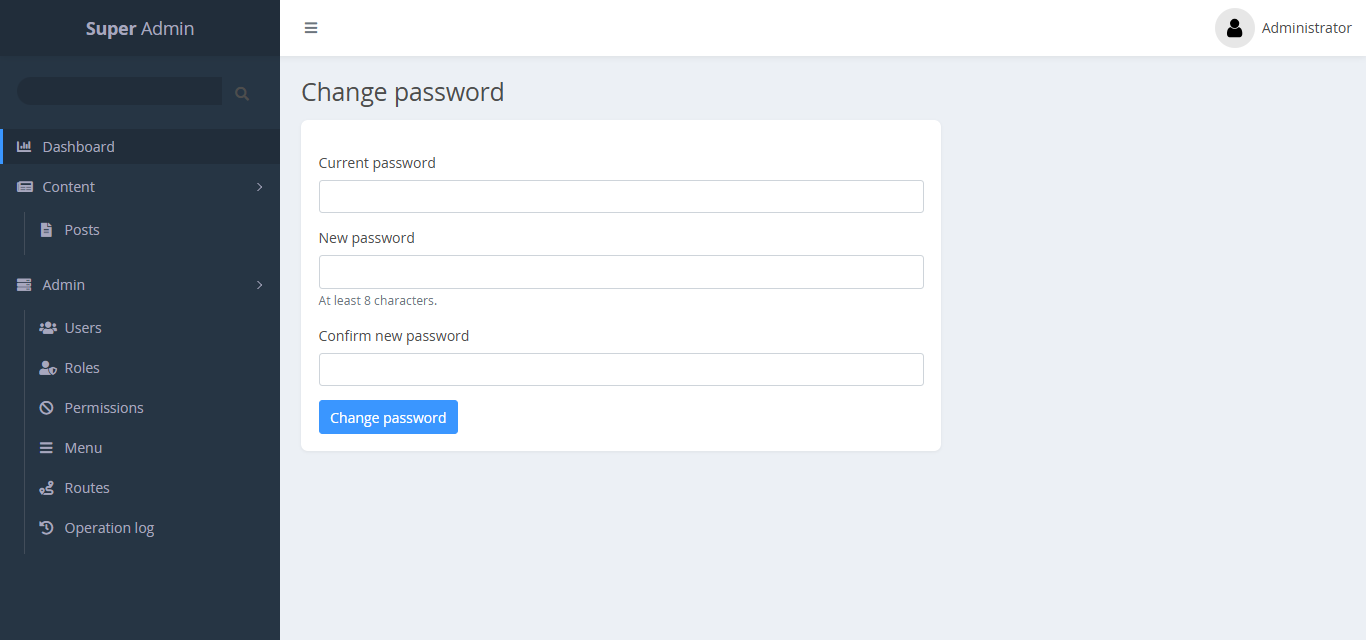
-
Sign in. You must change the generated password first.
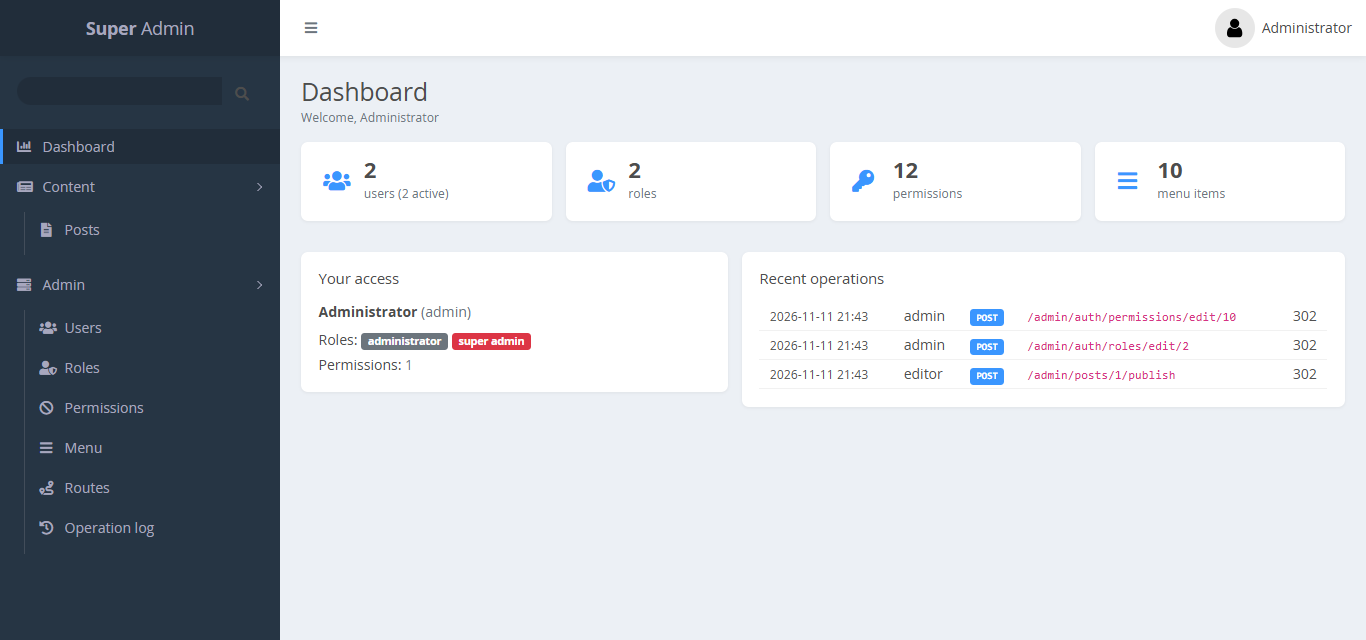
-
You land on the dashboard. The sidebar shows Admin → Users, Roles, Permissions, Menu, Routes, Operation log.
4. Try the samples
The repository has two sample apps.
cd samples/Sample.Web
dotnet run
# open https://localhost:7191/admin
# admin  / Admin#12345   (super administrator, development only)
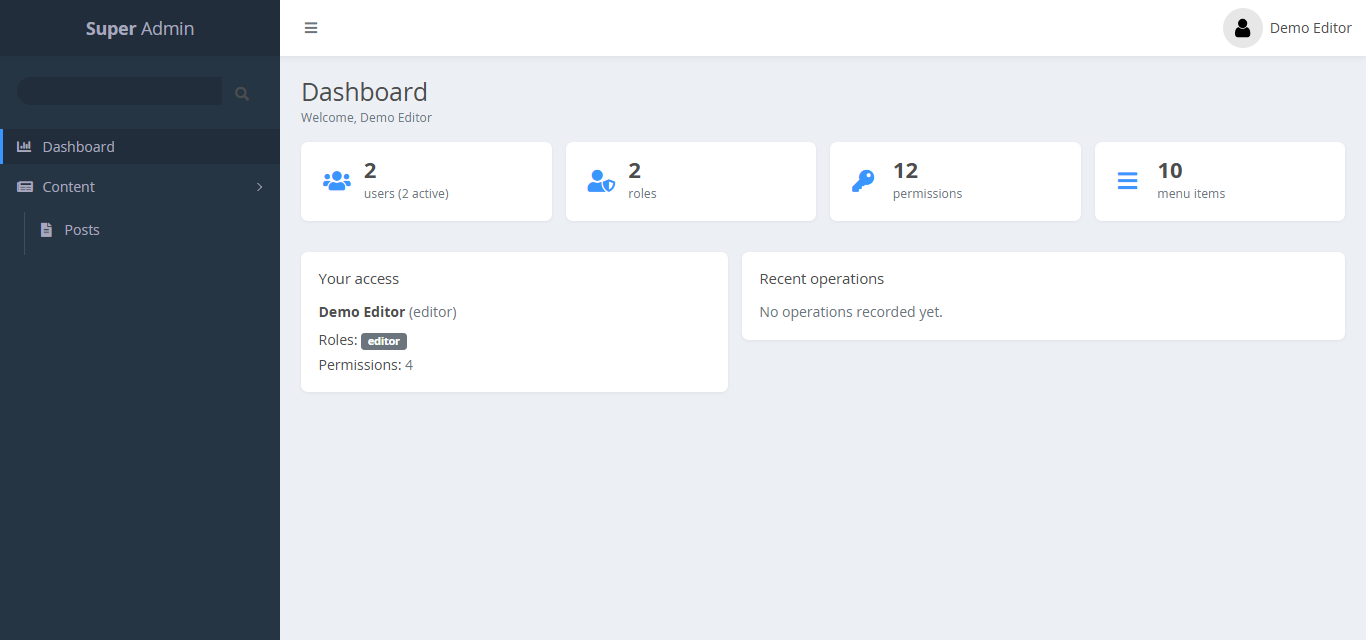
# editor / Editor#12345  (Editor role: sees only Dashboard and Content > Posts)

cd samples/Sample.Blazor          # the same with a Blazor Server app
dotnet run
# open https://localhost:7192/admin/app
# analyst / Analyst#12345 (Analyst role: App home and Reports, not Orders)
Signed in as editor, the sidebar shows only the items the Editor role may open:
Next steps
- How access works: what happens on every request.
- Protect your pages: give a role access to your own controller.
- Blazor Server: the extra setup for interactive server apps.